Delta adds one menu to wp-admin. The agent handles most day-to-day work, but it is useful to know what each screen does.
The dashboard comes in dark and light modes (the toggle sits top-right) and is deliberately minimal. It is a control panel for oversight: connections, toggles, restore points. It is not a building tool. There is no page builder.
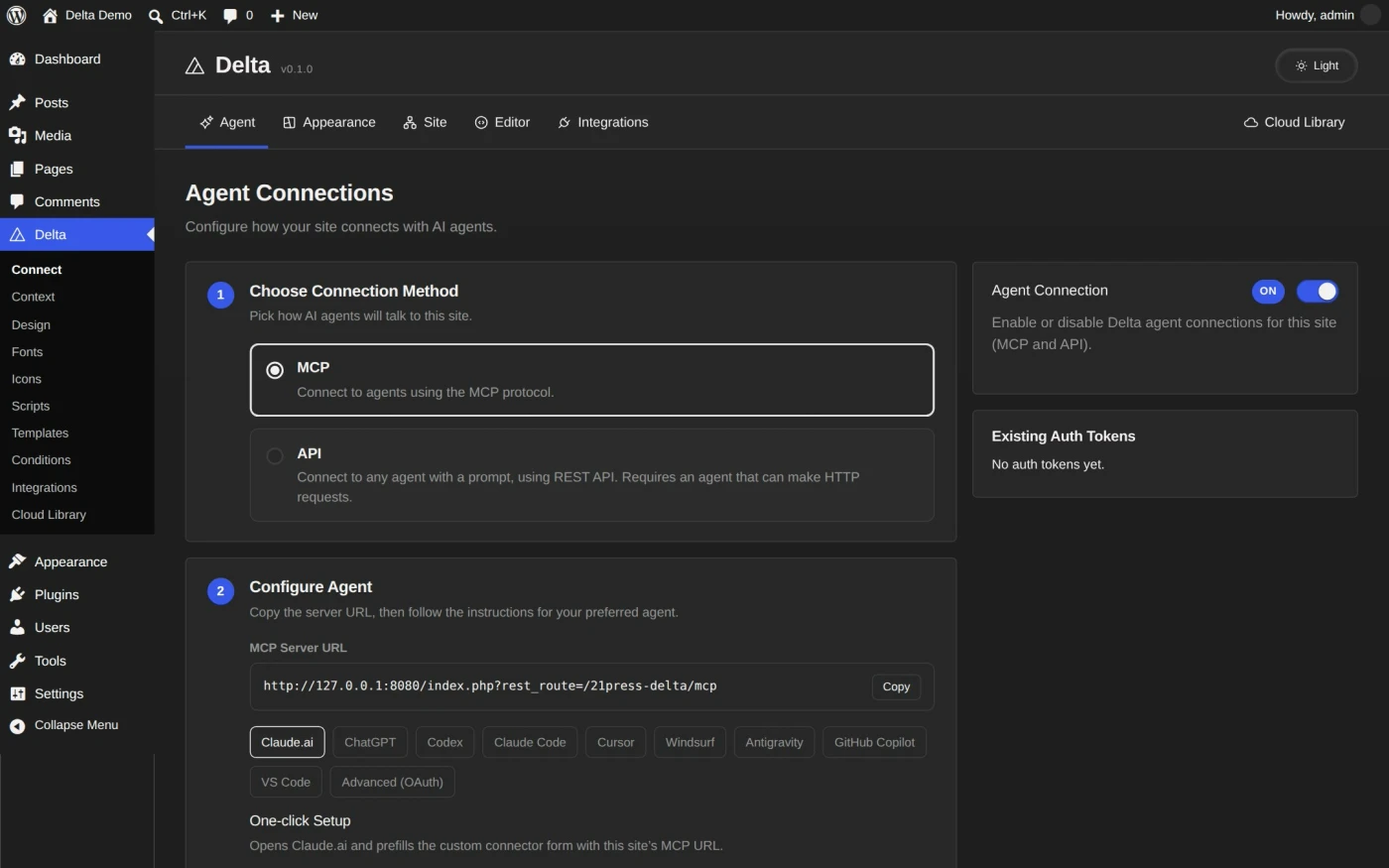
- Connect: agent connections, tokens, and revocation.
- Context: the agent’s working knowledge: skills (playbooks), rules (constraints you add), and guardrails (Delta’s built-in confirmations, which you can toggle but not edit).
- Design: the design system at a glance: the style guide, tokens, and snapshots with one-click restore.
- Fonts: install fonts from the Google catalog or upload your own; fonts are self-hosted on your server.
- Icons: icon packs and single icons, usable anywhere via
{{icon:pack/icon}}. - Scripts: site-wide header and footer snippets (analytics, tracking).
- Templates: every layout the agent has built: headers, footers, archives, singles.
- Conditions: which template shows where; the assignment rules behind the templates.
- Integrations: supported plugins (forms, content types, WooCommerce) and their status.
- Cloud Library: appears when the feature is enabled: browse and import site packs.
Two screens exist but stay out of the menu: Abilities (reachable from Connect, where you toggle individual agent capabilities) and the Delta Editor (open it from the Editor tab inside the Delta dashboard, or from any managed page’s edit screen, to inspect its HTML, CSS, and JS directly).
These screens are human-only by design. Agents cannot create tokens, enable abilities, or change guardrails.